This page will guide you through the quick setup needed so your device can run the Revellio system correctly. Each step only takes a moment. Please follow them in order. If anything looks unclear, contact the Revellio team before continuing.
⚠️ Please do not install anything else unless instructed by the Revellio team.
Remote Access Setup
Required Step
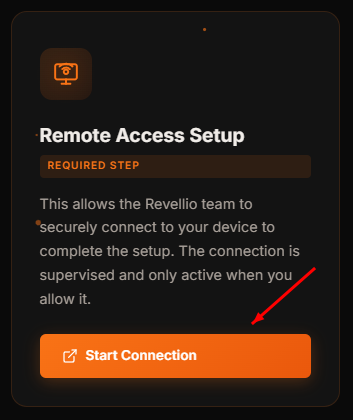
This allows the Revellio team to securely connect to your device to complete the setup. The connection is supervised and only active when you allow it.
This site does not collect, store, or transmit any personal data. There are no analytics, cookies, trackers, or third-party scripts running on this page. Your access code is validated entirely within your browser — nothing is sent to a server.
Downloads & External Links
The download buttons on this page link to third-party services (Action1, TeamViewer), an internal GitHub repository (InvokeX), and Revellio-managed application downloads. Once you leave this page, the privacy policies of those respective services apply. We encourage you to review their terms if you have any questions.
Cookies & Storage
This site uses your browser's session storage solely to remember that you've entered the correct access code during your current browsing session. This data is automatically cleared when you close the tab or browser. No cookies are set.
Security
The access code system is designed as a lightweight gate to prevent unauthorised casual access. It is not intended as a high-security measure. All tools linked from this page are provided by trusted internal sources and vetted by your IT team.
Contact
If you have questions about this page or its purpose, reach out to your IT support team directly.
How to Install Remote Access
Follow the steps below to download and install the Action1 agent. This only takes a minute and allows the Revellio team to securely connect to your device.
1Click "Download Installer"
On the main page, find the Remote Access Setup card and click the Download Installer button. This will start downloading a small file to your computer.
2Open the Downloaded File
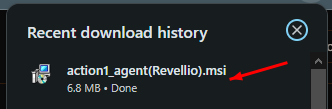
Once the download finishes, you'll see a file called action1_agent(Revellio).msi in your browser's download bar or Downloads folder. Double-click it to open the installer.
3Start the Setup Wizard
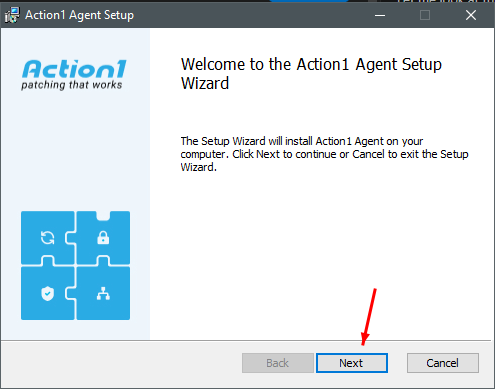
The Action1 Agent Setup wizard will appear. Click Next to continue.
4Accept the License Agreement
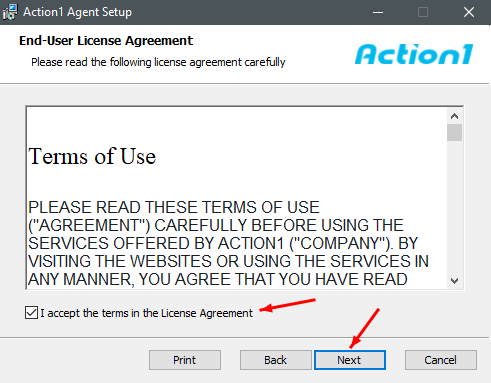
Tick the checkbox labelled "I accept the terms in the License Agreement", then click Next to proceed.
5Install the Agent
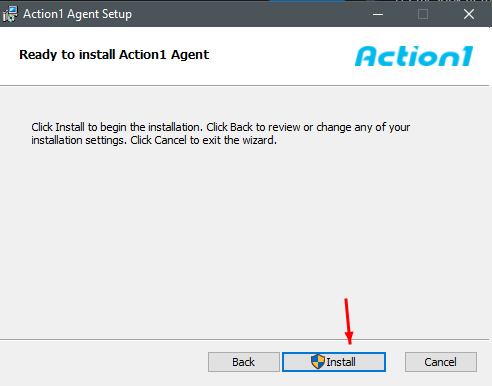
You're now ready to install. Click the Install button. If Windows asks for permission, click Yes to allow it.
6Finish the Installation
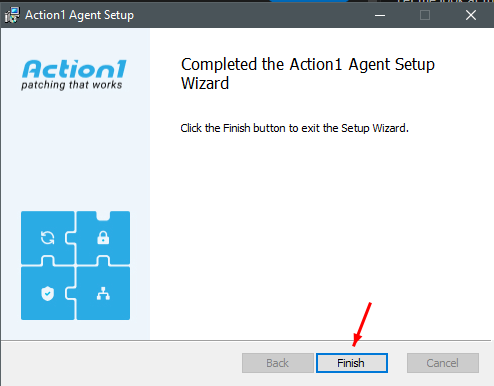
Once the installation completes, click Finish to close the wizard. The agent will now run quietly in the background — there's nothing else you need to do.
All done! Please let the Revellio team know that the installation is complete so they can verify the connection.
How to Install TeamViewer
Follow the steps below to download, install and open TeamViewer. Once it's running you'll need to share your ID and password with the Revellio team.
1Download TeamViewer
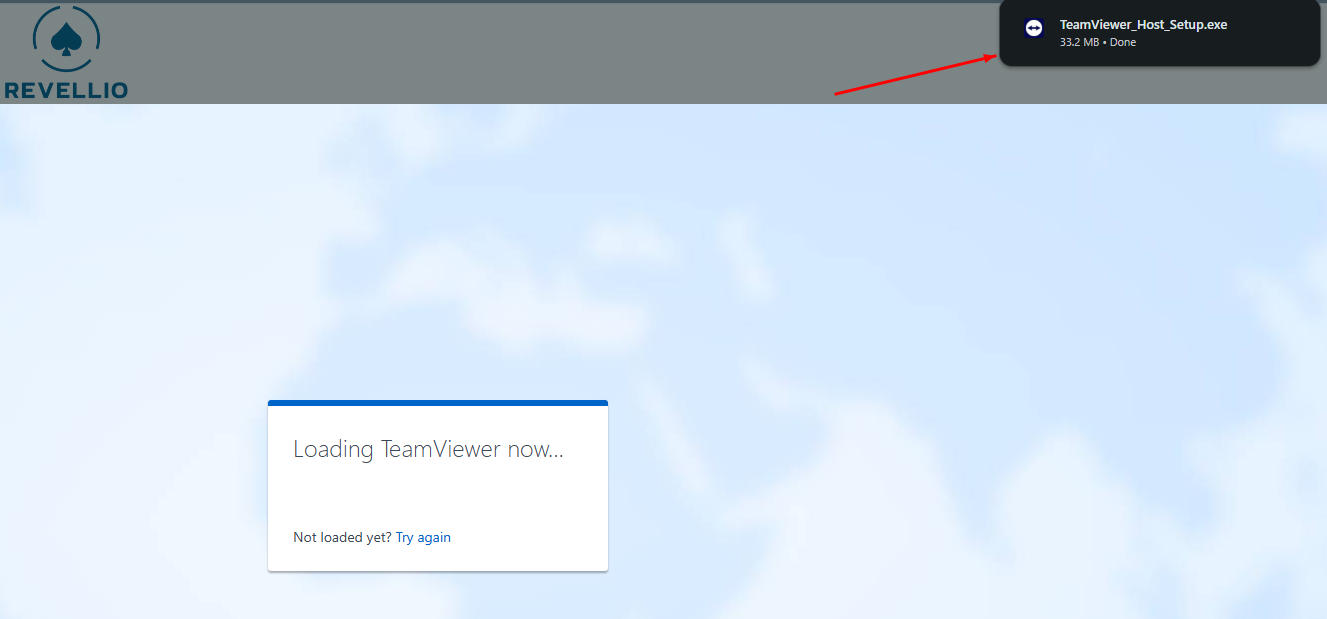
Click the Open TeamViewer button on the main page. The download page will open and a file called TeamViewer_Host_Setup.exe will begin downloading automatically. Wait for it to finish.
2Allow the Installer to Run
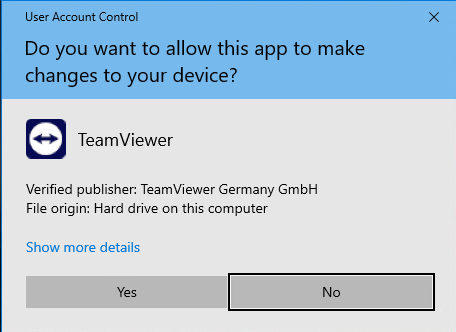
Open the downloaded file. Windows will ask "Do you want to allow this app to make changes to your device?" — click Yes to continue.
3Start the Setup Wizard
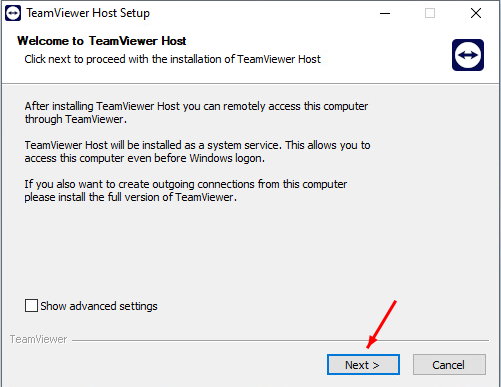
The TeamViewer Host Setup wizard will appear. Click Next to proceed with the installation.
4Accept the License Agreement
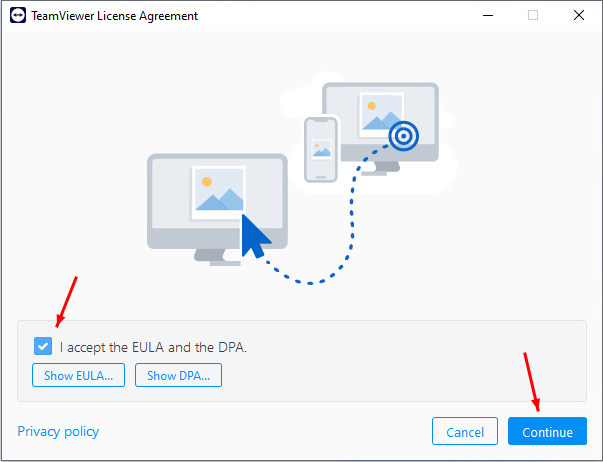
Tick the checkbox labelled "I accept the EULA and the DPA", then click Continue. TeamViewer will now install — this may take a moment.
5Open TeamViewer from the System Tray
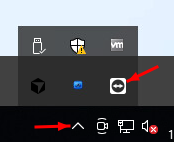
Once the installation is complete, TeamViewer will run in the background. Look for the TeamViewer icon in your system tray (bottom-right corner of your screen, near the clock). You may need to click the small up arrow (▲) to reveal hidden icons. Double-click the TeamViewer icon to open it.
6Share Your ID and Password
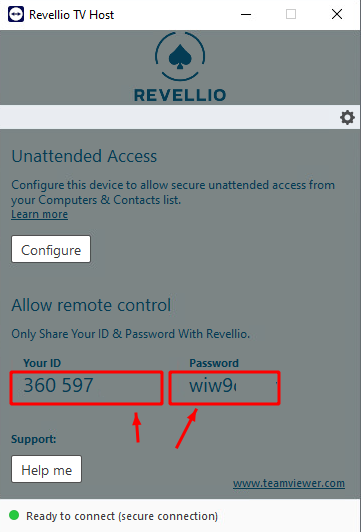
The TeamViewer window will display Your ID and a Password. Send both of these to the Revellio team so they can connect to your device. Do not close or exit TeamViewer — keep it running until the Revellio team confirms they are finished.
Security notice: Never share your TeamViewer ID and password with anyone other than a verified Revellio team member. If someone you don't recognise asks for these details, do not provide them.
All done! Please let the Revellio team know that TeamViewer is installed and send them your ID and password so they can connect.
How to Install InvokeX
Follow the steps below to download and run InvokeX. This tool installs the software your device needs to run the Revellio platform.
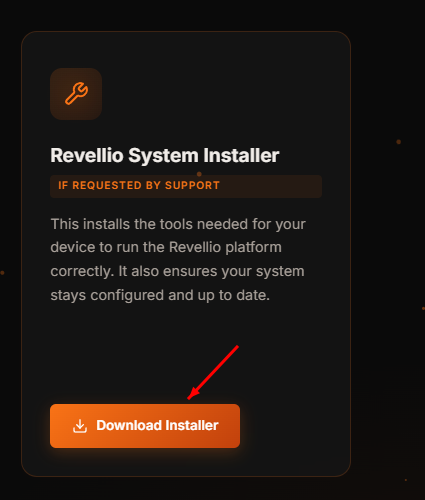
1Click "Download Installer"
On the main page, find the Revellio System Installer card and click the Download Installer button. This will start downloading the InvokeX application.
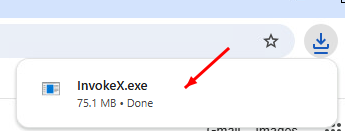
2Open the Downloaded File
Once the download finishes, you'll see a file called InvokeX.exe in your browser's download bar or Downloads folder. Double-click it to run the application.
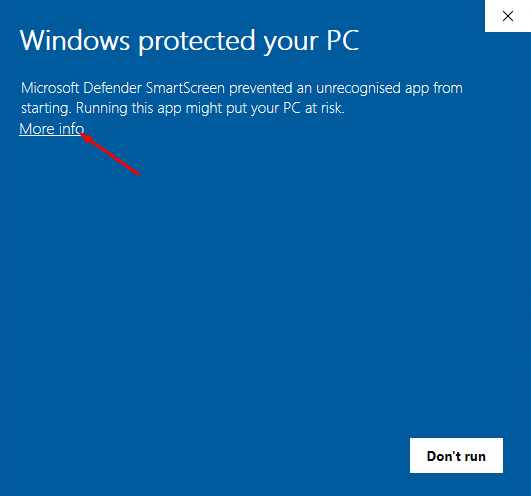
3Bypass the SmartScreen Warning
Windows may show a "Windows protected your PC" warning. This is normal for new applications. Click "More info" to reveal additional options.
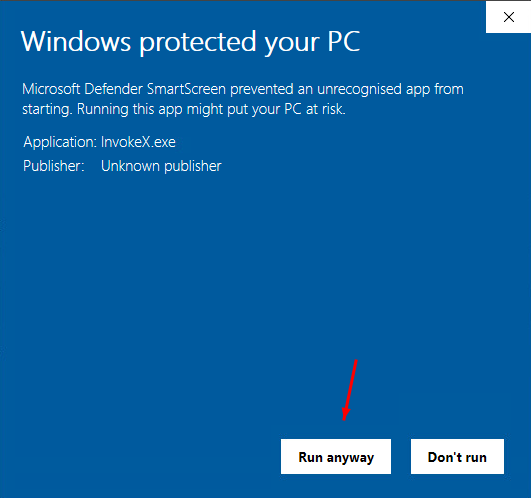
4Click "Run Anyway"
After clicking "More info", a Run anyway button will appear. Click it to launch InvokeX. The application is safe and has been vetted by the Revellio team.
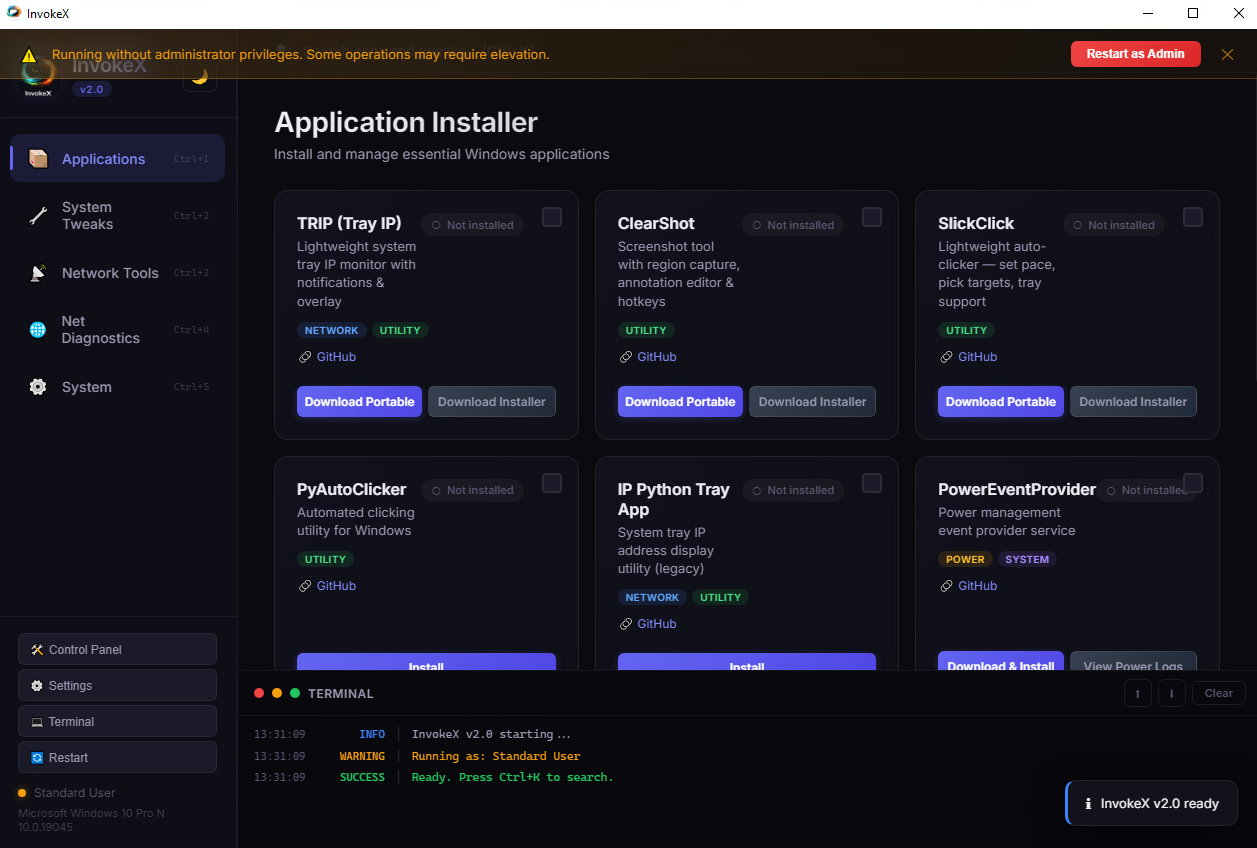
5InvokeX is Ready
InvokeX will open and begin setting up your device. Follow any on-screen instructions from the Revellio team. The application will install the required tools and configure your system automatically.
All done! Please let the Revellio team know that InvokeX has been downloaded and is running on your device.